
Sound Review shows the episode with all notes for the sound team. You review the picture on a computer and write your notes there; this guide you can keep on your phone.
Tap the picture to see it larger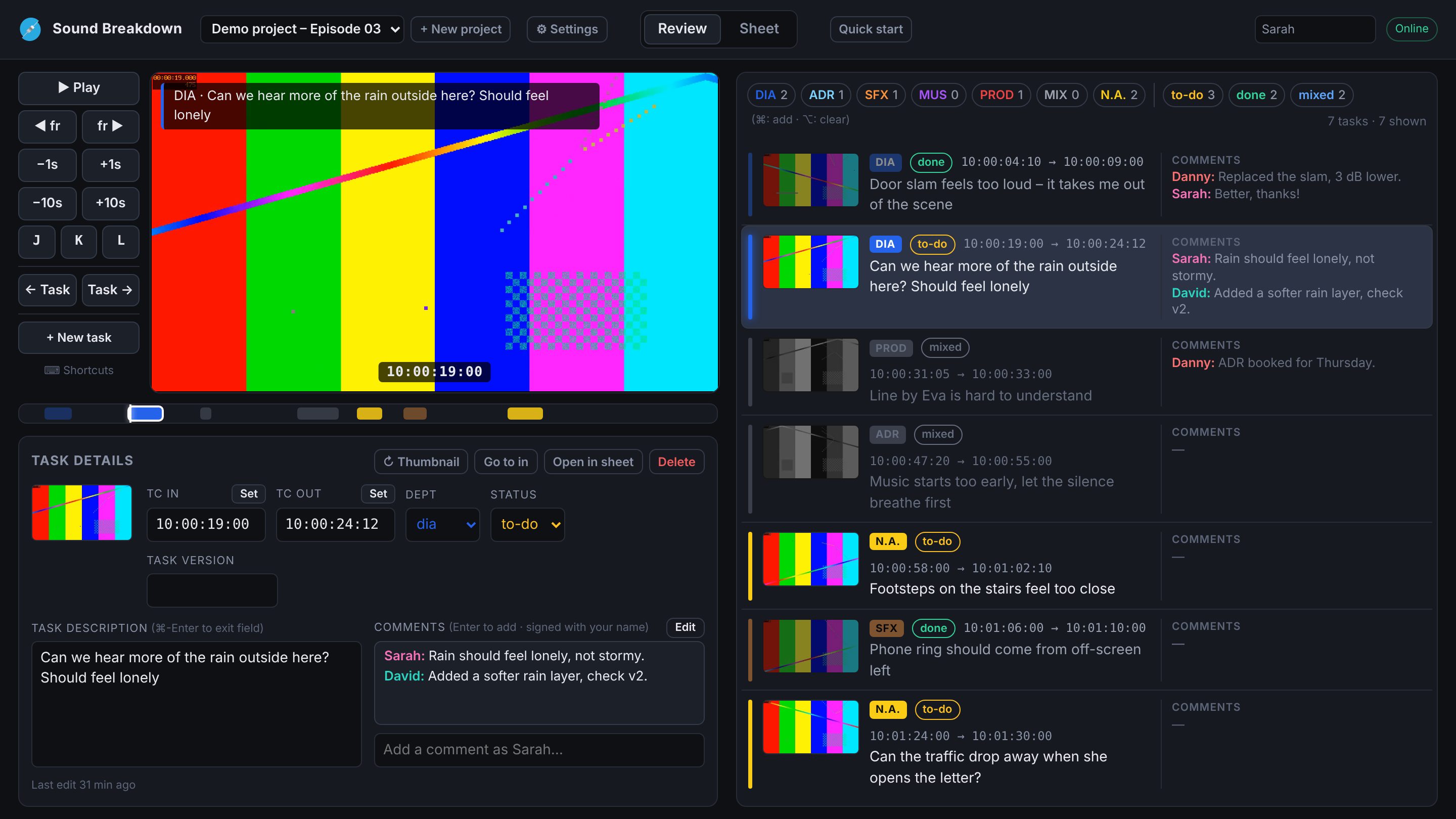
- 1Video playerThe picture with its timecode, and the notes that are playing.
- 2Play buttonsPlay, frame by frame, 1 or 10 seconds, previous / next note.
- 3TimelineEach block is a note. Click anywhere to jump there.
- 4All notesClick a note to jump to it, double-click to edit it. The buttons on top show only one department or status.
- 5+ New taskStart a new note at the playhead (or press N).
- 6Task detailsThe selected note. Type a comment and press Enter.
Before you start
Your name – fill it in once, top right. It signs your notes and comments.
Online top right means everything is saved for everyone, automatically.
? shows all keyboard shortcuts.
Play the video
Space
Play / pause
JKL
Back · stop · forward.
Press J or L again to go faster: 2×, 4×, 8×.
Press J or L again to go faster: 2×, 4×, 8×.
←→
One frame back / forward
Shift+←→
One second back / forward
Shift⌥+←→
Ten seconds back / forward
↑↓
Previous / next note
[]
Start / end of the video
T
Show / hide the timecode in the picture
Prefer the mouse?
Use the buttons left of the video 2, or click on the timeline 3 to jump to that moment.
Click a note in the list 4 and the video jumps to its start.
The J K L buttons work like the keys: back, stop, forward.
Hide the notes or the timecode in the picture? Settings › Video player, or press T for the timecode.
Make a note
- Stop the video at the moment your note is about.
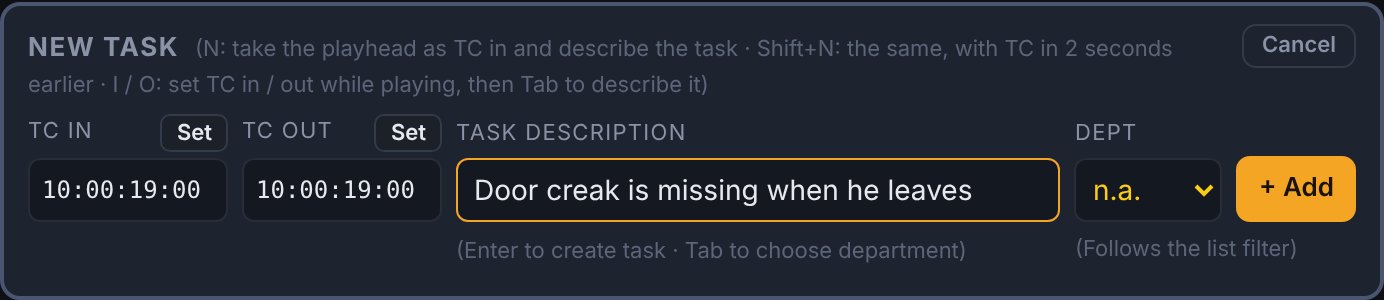
- Press N or click + New task 5. The New task panel opens with the timecode filled in, and you can type straight away.
Did it start a bit earlier? Press Shift+N: the note starts 5 seconds before (you can change that in Settings). - Type your note and press Enter. Done – everyone sees it right away.
Good to know
Leave the department on N.A. (not assigned). The sound team decides who picks it up.
A longer scene? While playing, press I at the start and O at the end, then Tab to type the note.
React to an existing note? Click it in the list, type in Comments 6 and press Enter. Your name is added in front, in your own colour.
Changed your mind? Esc or Cancel closes the New task panel without saving.
Made a mistake? Select the note and press Delete.